Guides
Home / Documentation / Site editor
Site editor
The dashboard editor is where you structure pages, edit sections, theme tokens, and global SEO. The same JSON is what the REST API reads and writes.
Design vs CMS workspace
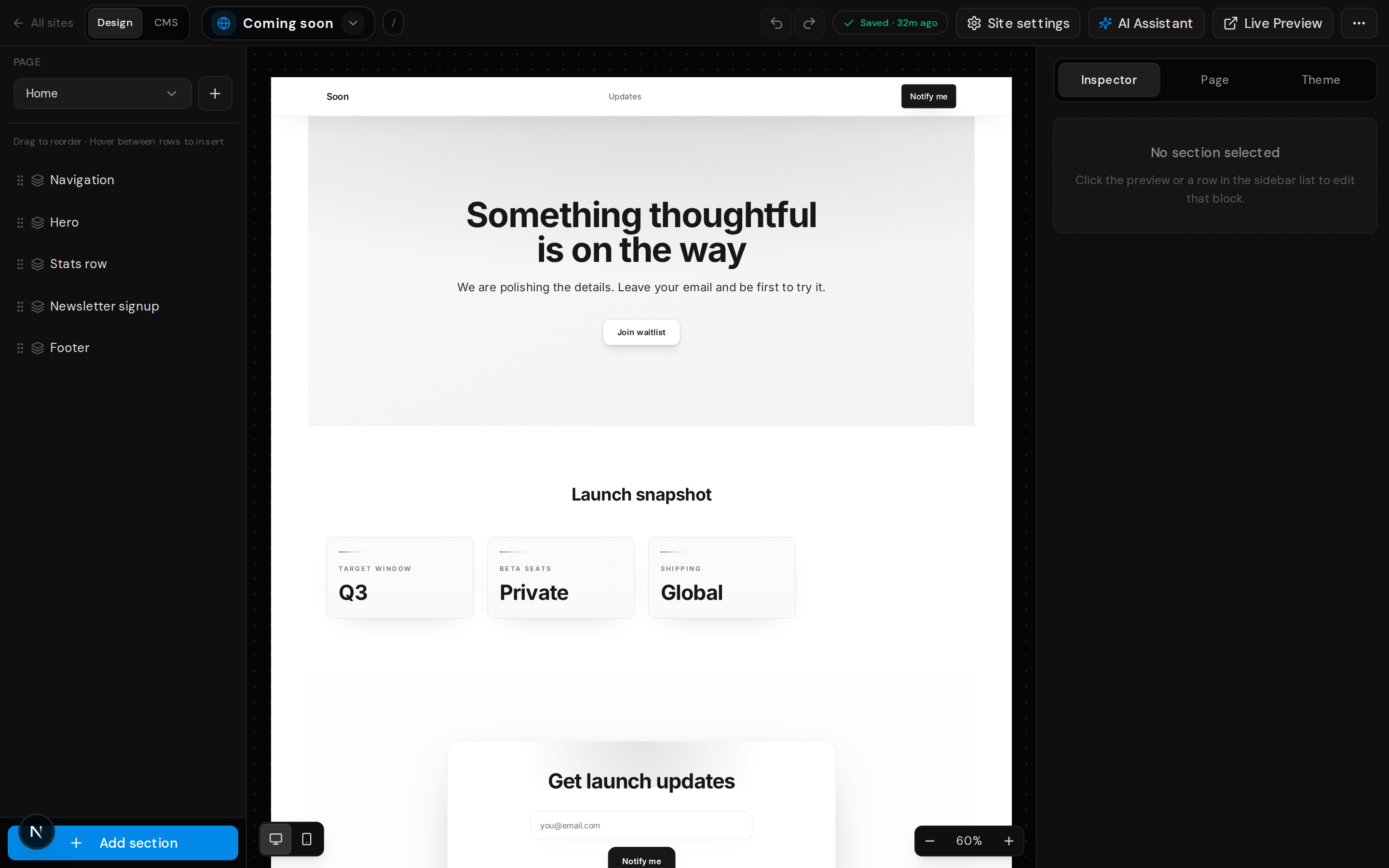
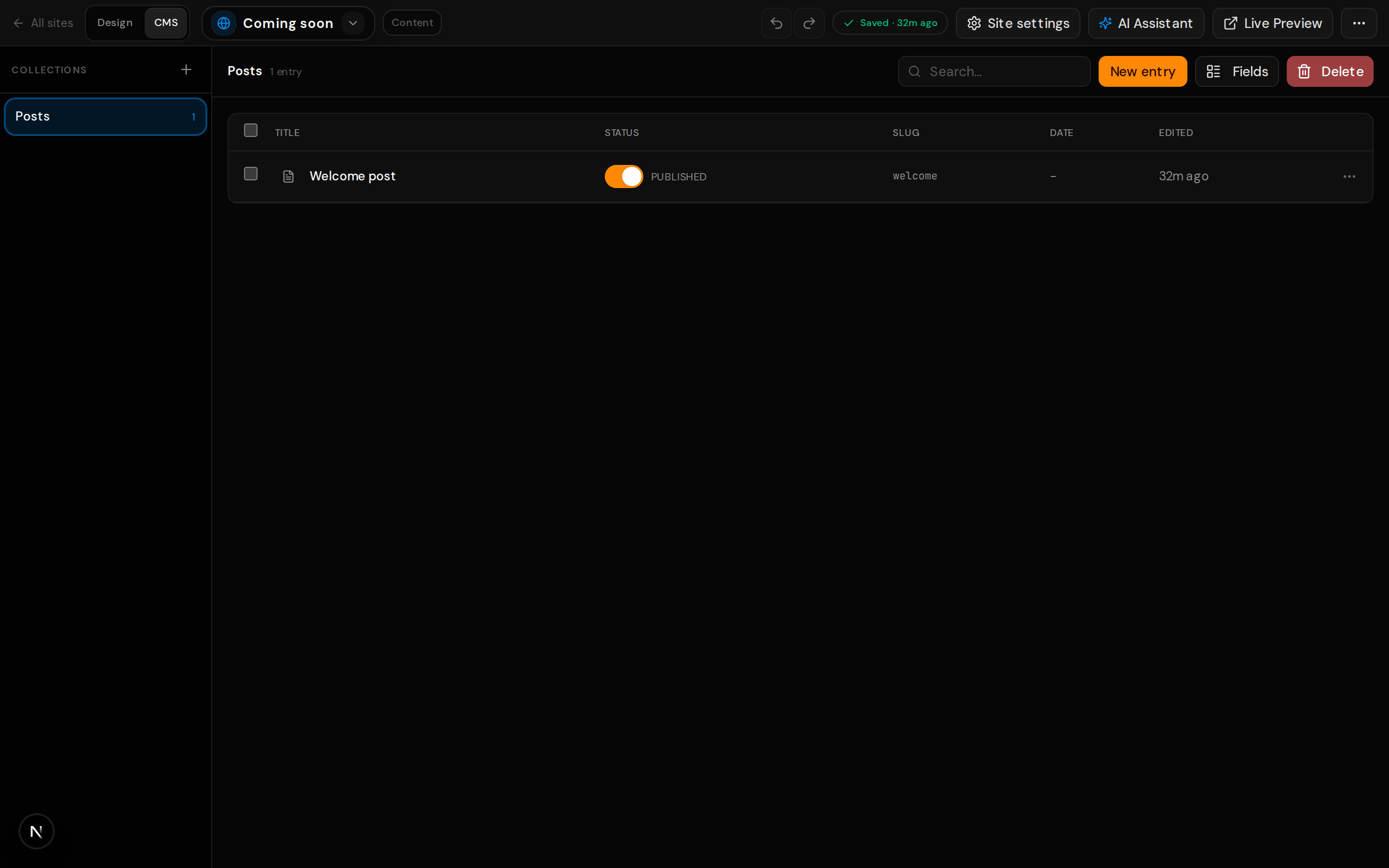
Use Design to edit the static page, reorder blocks, and adjust the theme. Switch to CMS when a page is wired to a collection so you can browse entries, tune field values, and preview how dynamic detail pages render. Both modes operate on the same site document; CMS mode focuses on data rows instead of the section list.
Typical flow
- Open a site from the dashboard and pick a page in the sidebar.
- Add or reorder sections, then select a block to edit props in the inspector.
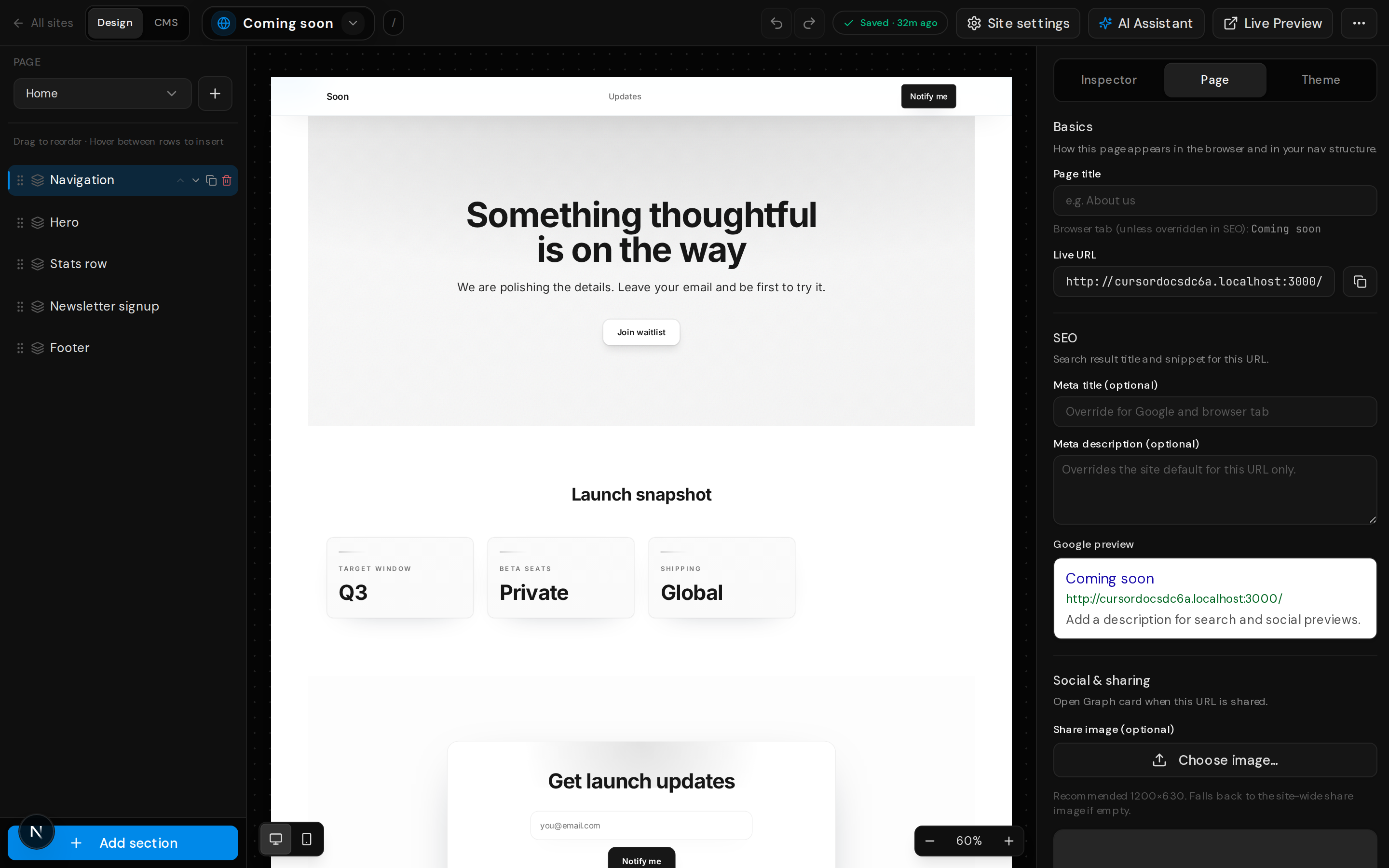
- Adjust site title, description, and social images under global settings when needed.
- Save when you are ready. If someone else saved first, choose reload or overwrite when prompted.
- For dynamic routes, attach a collection, define template sections, then manage entries in CMS workspace.
Theme and page panels
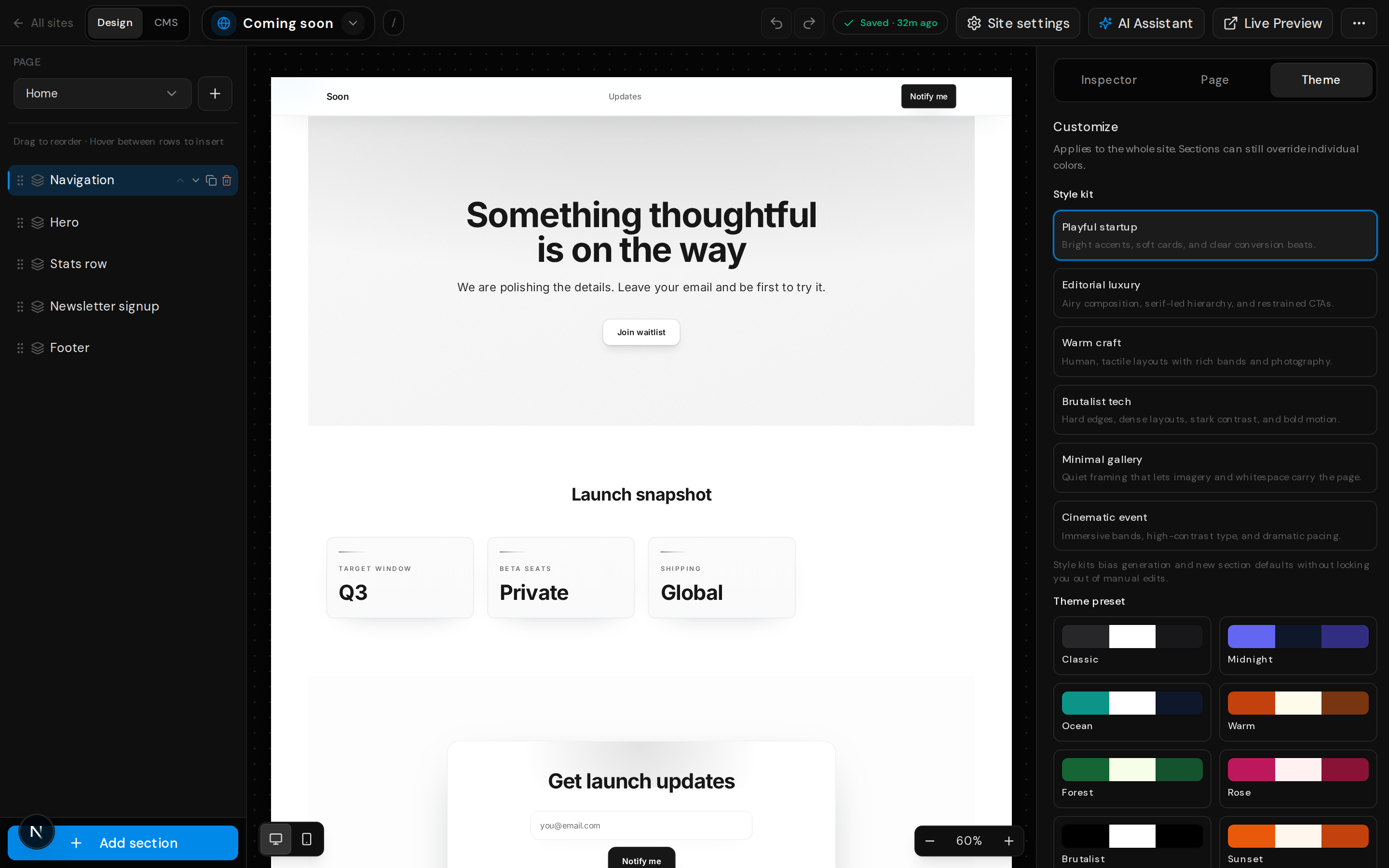
The right rail switches between block props, per-page SEO and slug controls, and global theme tokens so you can tune layout data and visual system without leaving the editor.
Add section
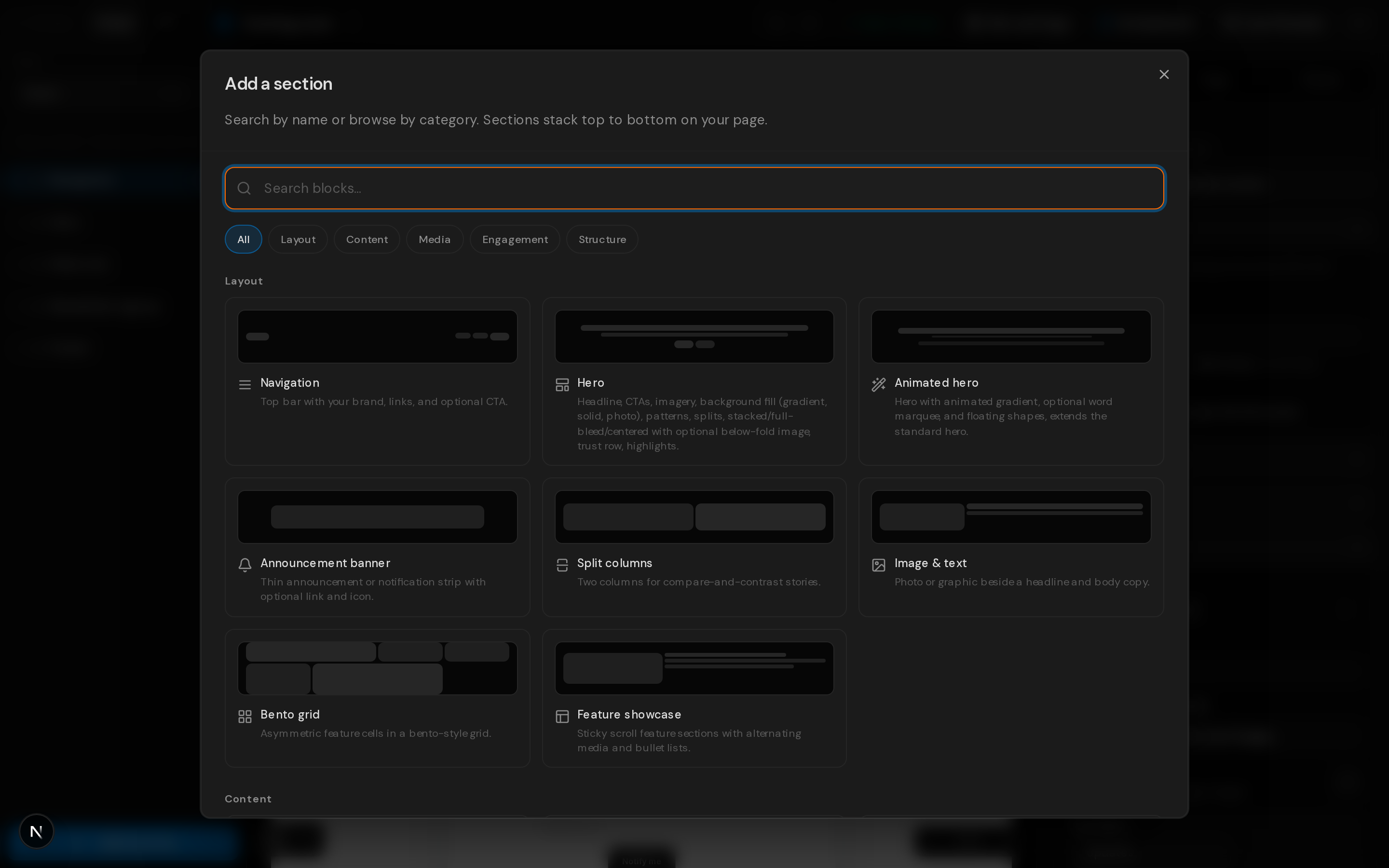
Use Add section in the left rail footer to trigger the fully redesigned 2-column Section Modal. This modal features a premium vertical category sidebar, glassmorphic preset section group badges for fast multi-block insertions, and clean in-place search filtering that helps you explore and place sections onto the current page.
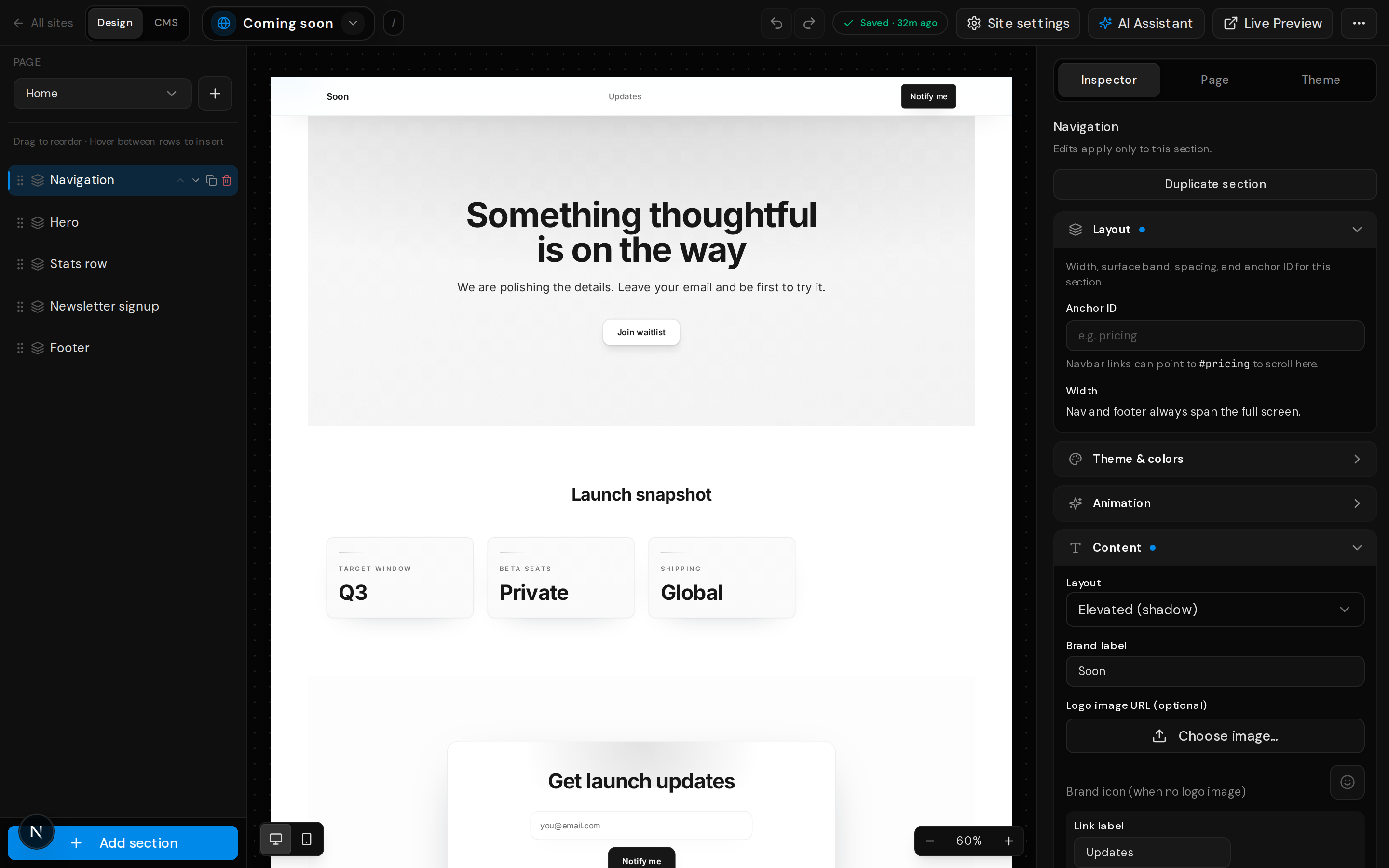
Block inspector
Selecting a block in the left list opens its props in the inspector so you can tune copy, layout, media, and CMS bindings without leaving the page.
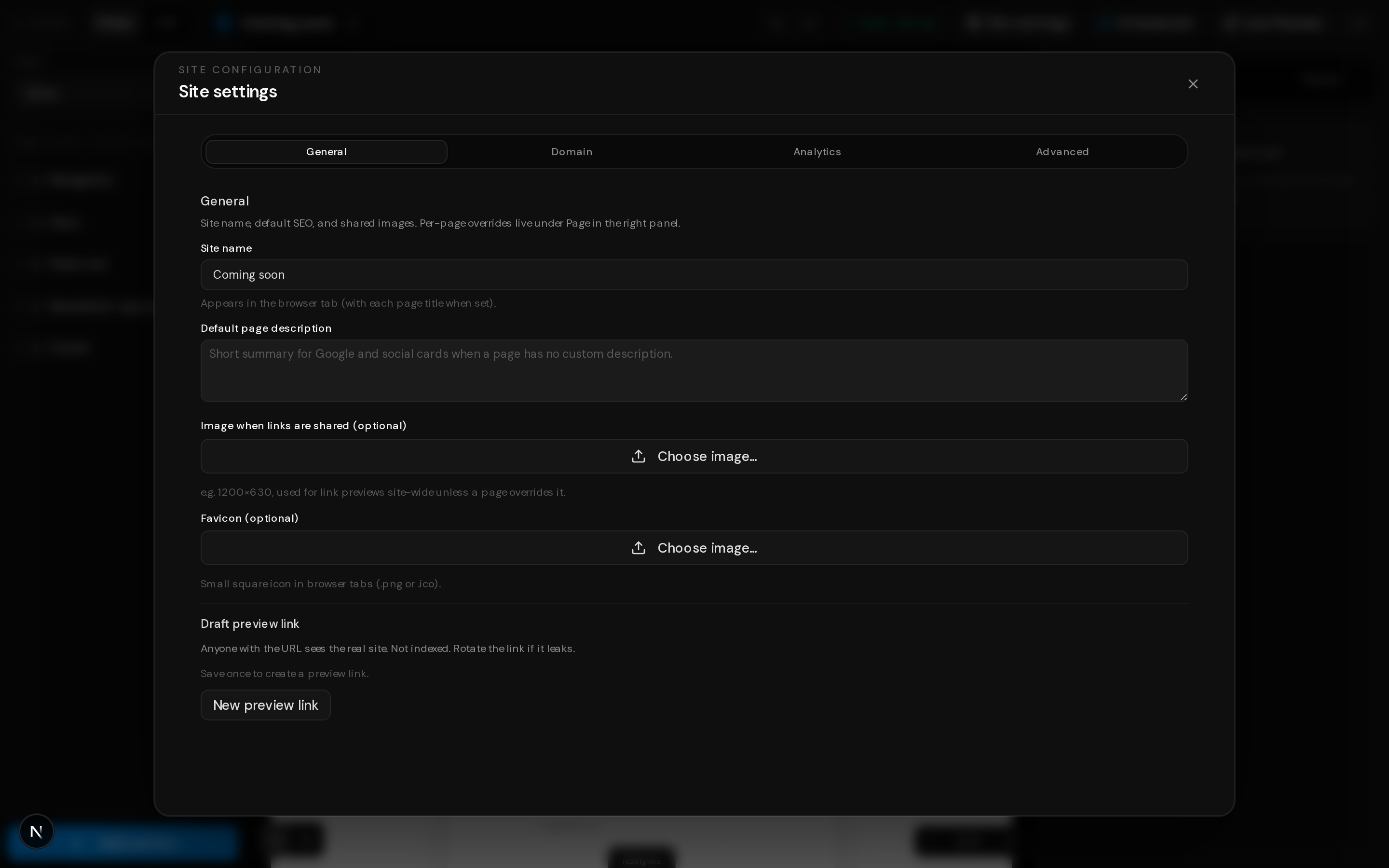
Site settings
Open Site settings from the editor header for title, description, social preview, favicon, analytics IDs, and domain options in one place.
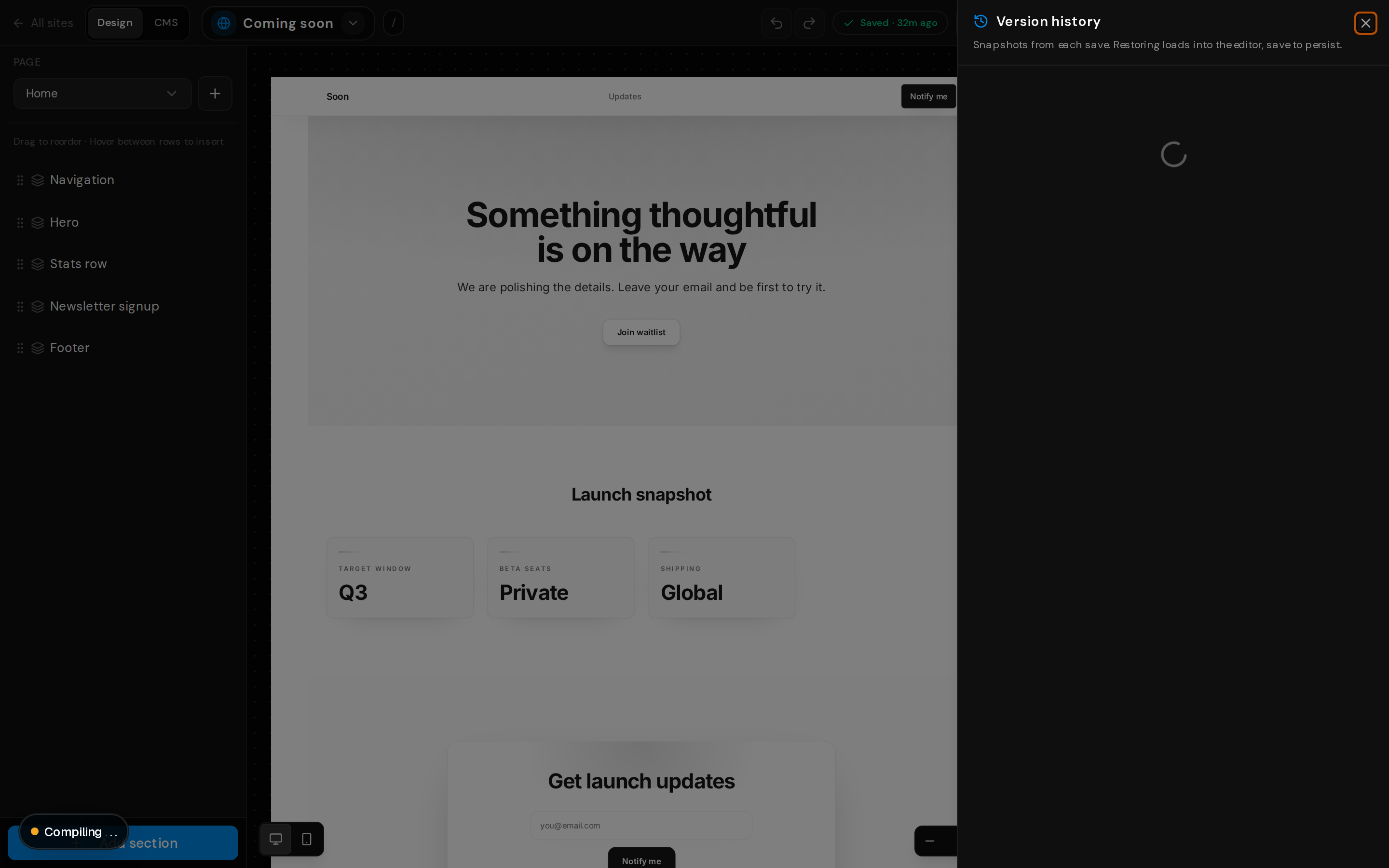
Version history
Every save creates a snapshot you can browse from the header menu. Restoring loads a past revision into the editor; save again when you are happy with the result.
AI Assistant
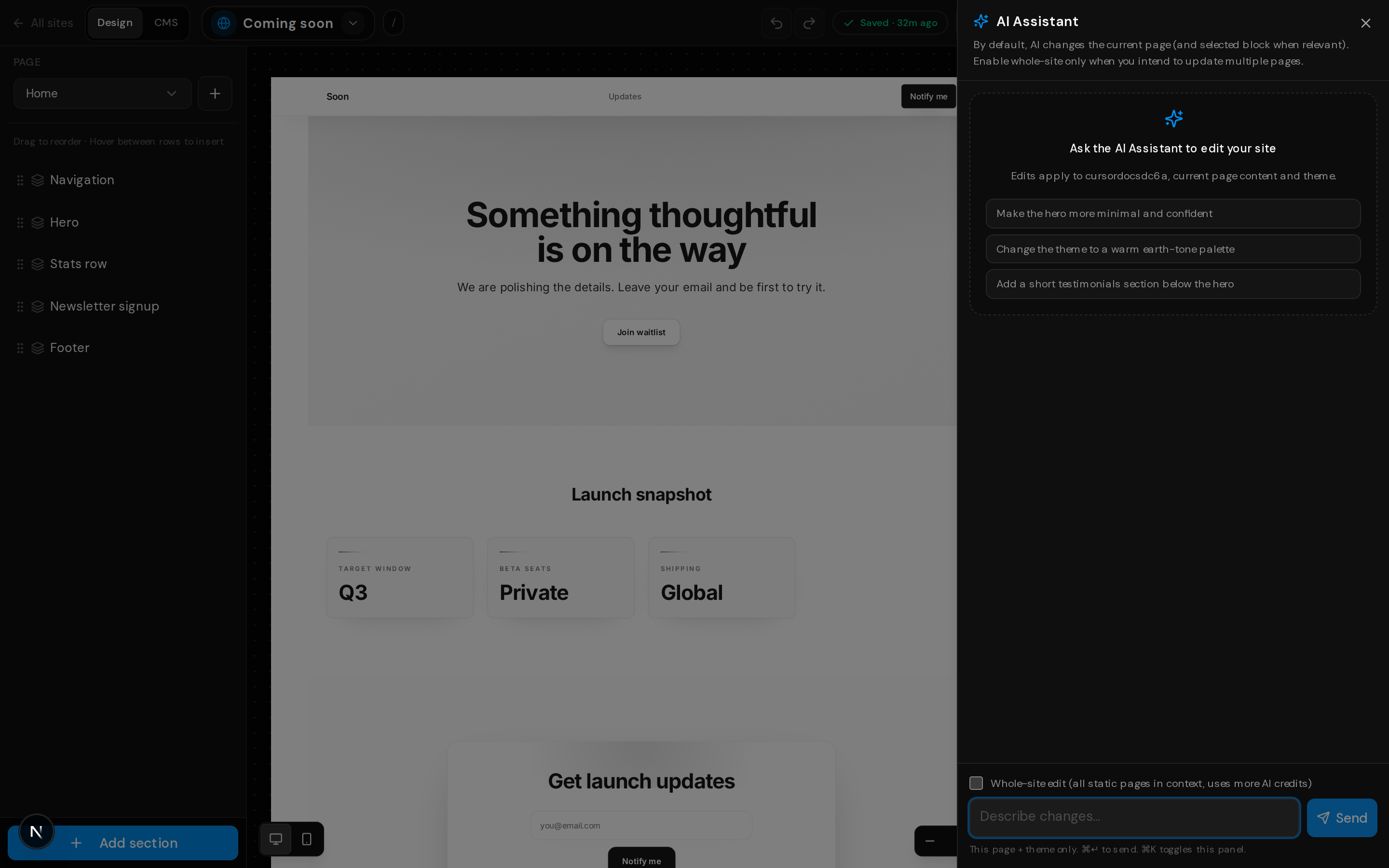
The in-editor assistant proposes structured edits with streaming progress. Scope changes to the current page by default, or enable whole-site mode when you intend to touch every static page.
Dashboard
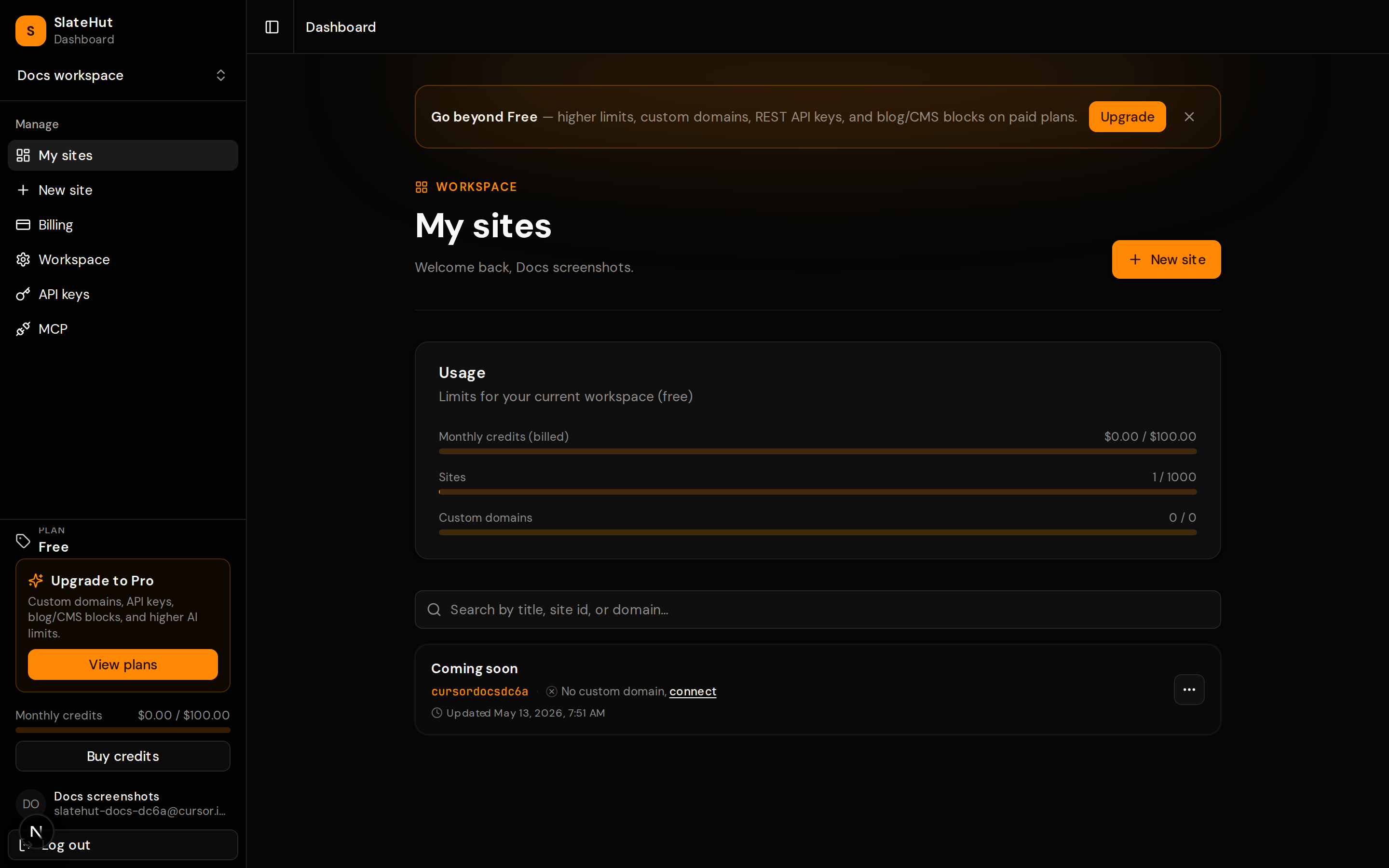
Your workspace overview lists every site with links to the editor, live URL, and site admin surfaces.
Keyboard shortcuts
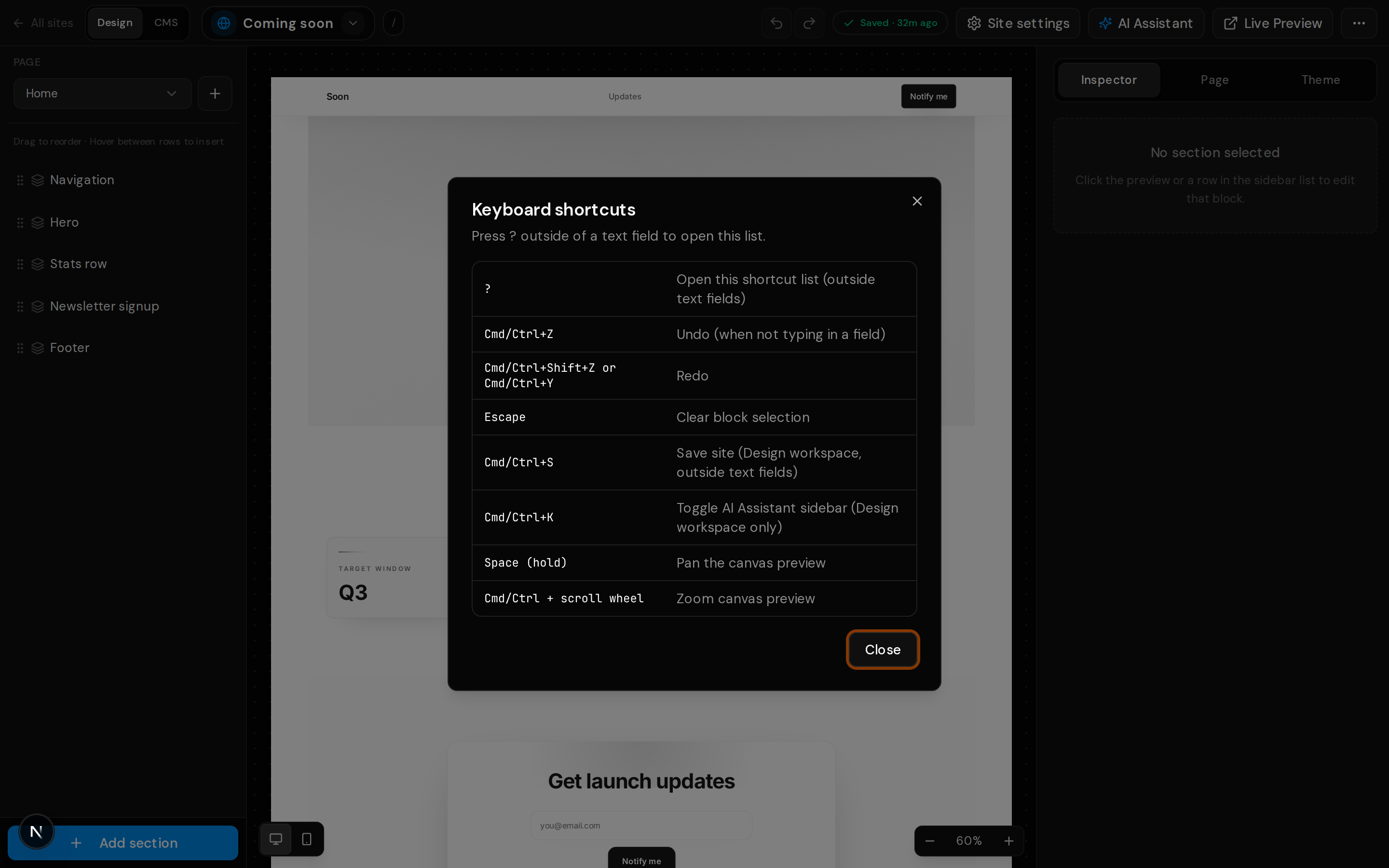
Press ? outside of a text field, or open the list from the editor overflow menu.
| Shortcut | Action |
|---|---|
| ? | Open this shortcut list (outside text fields) |
| Cmd/Ctrl+Z | Undo (when not typing in a field) |
| Cmd/Ctrl+Shift+Z or Cmd/Ctrl+Y | Redo |
| Escape | Clear block selection |
| Cmd/Ctrl+S | Save site (Design workspace, outside text fields) |
| Cmd/Ctrl+K | Toggle AI Assistant sidebar (Design workspace only) |
| Space (hold) | Pan the canvas preview |
| Cmd/Ctrl + scroll wheel | Zoom canvas preview |